# Full Stack Chat App (/cookbooks/vercel-chat)
In this example, you will learn how to build a chatbot that:
* Lets users connect their various apps to the chatbot using the Composio SDK.
* Uses the Vercel provider in the Composio SDK to handle and execute tool calls from the LLM.
This page gives a high-level overview of the Composio SDK and how it is used in the
GitHub repository: [composiohq/chat](https://github.com/composiohq/chat). You can
find the demo live [here](https://chat.composio.dev/).
# Prerequisites
Ensure you've followed the README.md in the [composiohq/chat](https://github.com/composiohq/chat)
repository to set up the project locally.
# Creating auth configs
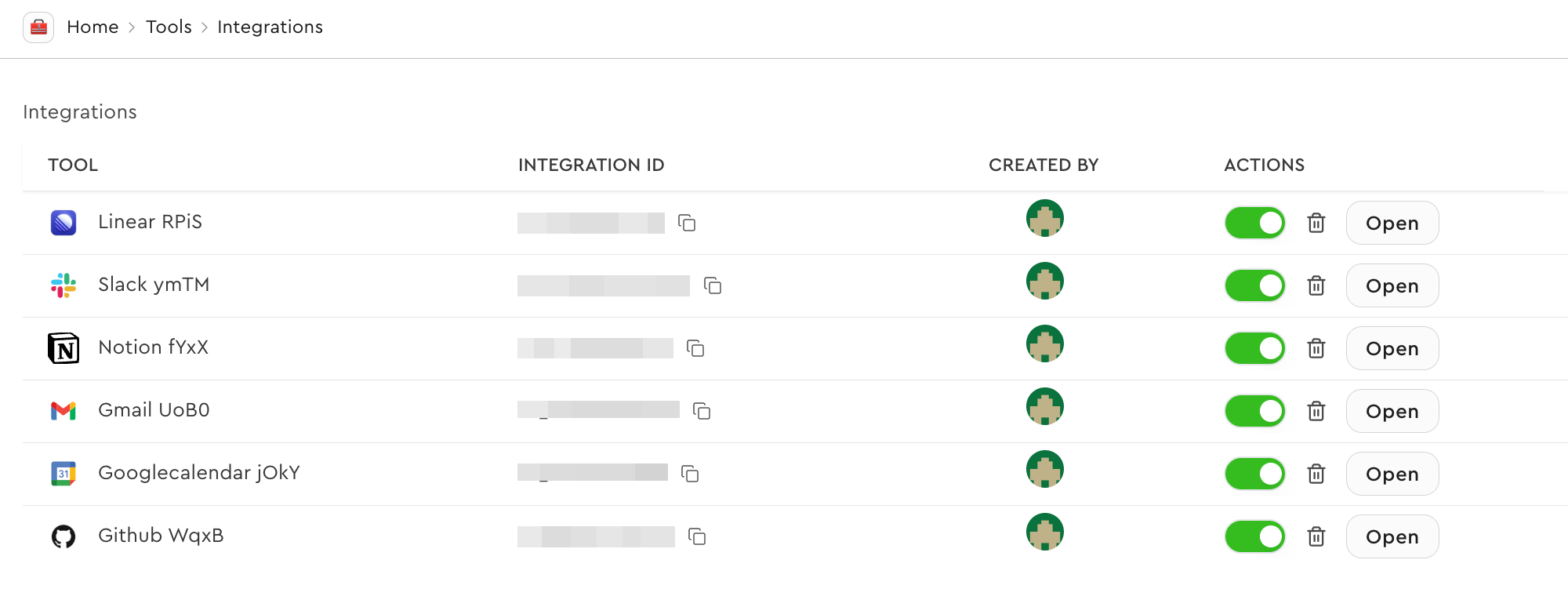
For all the apps you want to connect to the chatbot, you need to create their
respective auth configs. Learn how to create auth configs [here](/docs/tools-direct/authenticating-tools#creating-an-auth-config).
Once done, your auth configs will be available in the [Composio dashboard](https://platform.composio.dev/integrations).
 ## Save auth config IDs to environment variables
For this project, the auth config IDs should be saved to the environment variables
with the `NEXT_PUBLIC_` prefix.
```bash .env.local
NEXT_PUBLIC_GMAIL_AUTH_CONFIG_ID=ac_1234567890
NEXT_PUBLIC_GITHUB_AUTH_CONFIG_ID=ac_1234567890
```
# Create a Composio client instance
We create a Composio client instance for server-side operations like API routes,
server components, etc.
```typescript lib/service/composio.ts
import { Composio } from '@composio/core';
import { VercelProvider } from '@composio/vercel';
const composio = new Composio({
apiKey: process.env.COMPOSIO_API_KEY,
provider: new VercelProvider(),
});
export default composio;
```
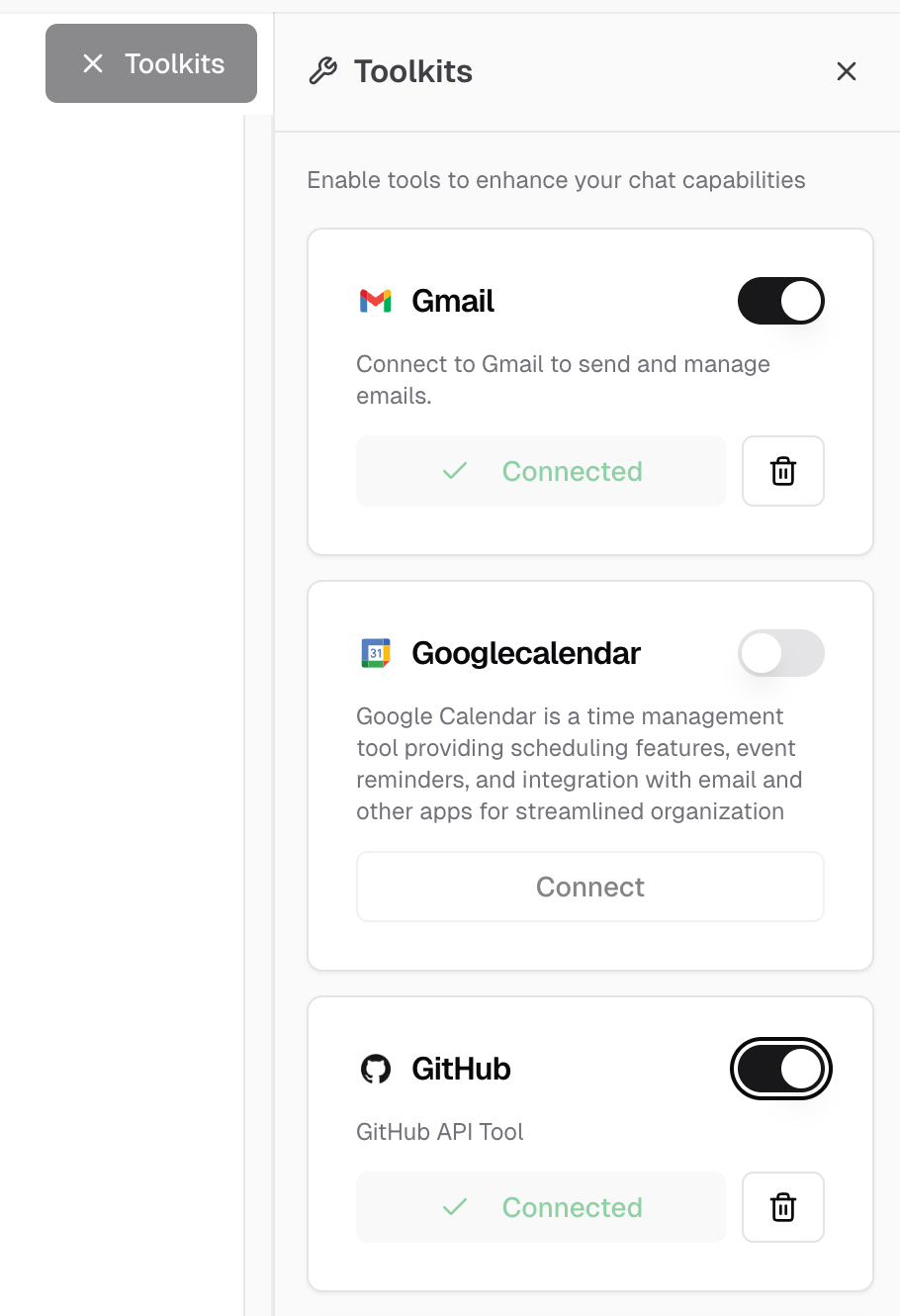
# Creating an API for fetching toolkits
The Composio SDK is meant to be used only in server-side code. For client-side
functionality, we create API endpoints in the `/app/api/` directory. In order to
list the toolkits and their connection status, we create a Next.js API route to
fetch the toolkits using Composio SDK.
## Save auth config IDs to environment variables
For this project, the auth config IDs should be saved to the environment variables
with the `NEXT_PUBLIC_` prefix.
```bash .env.local
NEXT_PUBLIC_GMAIL_AUTH_CONFIG_ID=ac_1234567890
NEXT_PUBLIC_GITHUB_AUTH_CONFIG_ID=ac_1234567890
```
# Create a Composio client instance
We create a Composio client instance for server-side operations like API routes,
server components, etc.
```typescript lib/service/composio.ts
import { Composio } from '@composio/core';
import { VercelProvider } from '@composio/vercel';
const composio = new Composio({
apiKey: process.env.COMPOSIO_API_KEY,
provider: new VercelProvider(),
});
export default composio;
```
# Creating an API for fetching toolkits
The Composio SDK is meant to be used only in server-side code. For client-side
functionality, we create API endpoints in the `/app/api/` directory. In order to
list the toolkits and their connection status, we create a Next.js API route to
fetch the toolkits using Composio SDK.
 ## 1. Listing connected accounts
First, we fetch all connected accounts for a user and create a mapping of toolkit
slugs to their connection IDs:
```typescript app/api/composio/toolkits.ts
// @noErrors
export async function GET() {
// ... auth logic ...
// List connected accounts to get connection IDs for each toolkit
const connectedAccounts = await composio.connectedAccounts.list({
userIds: [session.user.id],
});
const connectedToolkitMap = new Map();
connectedAccounts.items.forEach(account => {
connectedToolkitMap.set(account.toolkit.slug.toUpperCase(), account.id);
});
// ... continue with toolkit fetching ...
```
## 2. Fetching toolkit data and building response
Next, we fetch toolkit information for each supported toolkit and combine it with the connection status:
```typescript app/api/composio/toolkits.ts
// @noErrors
export async function GET() {
// ... auth logic ...
// ... connected accounts mapping ...
const SUPPORTED_TOOLKITS = ['GMAIL', 'GOOGLECALENDAR', 'GITHUB', 'NOTION'];
// Fetch toolkit data from slugs
const toolkitPromises = SUPPORTED_TOOLKITS.map(async slug => {
const toolkit = await composio.toolkits.get(slug);
const connectionId = connectedToolkitMap.get(slug.toUpperCase());
return {
name: toolkit.name,
slug: toolkit.slug,
description: toolkit.meta?.description,
logo: toolkit.meta?.logo,
categories: toolkit.meta?.categories,
isConnected: !!connectionId,
connectionId: connectionId || undefined,
};
});
const toolkits = await Promise.all(toolkitPromises);
return NextResponse.json({ toolkits });
```
# Managing connections
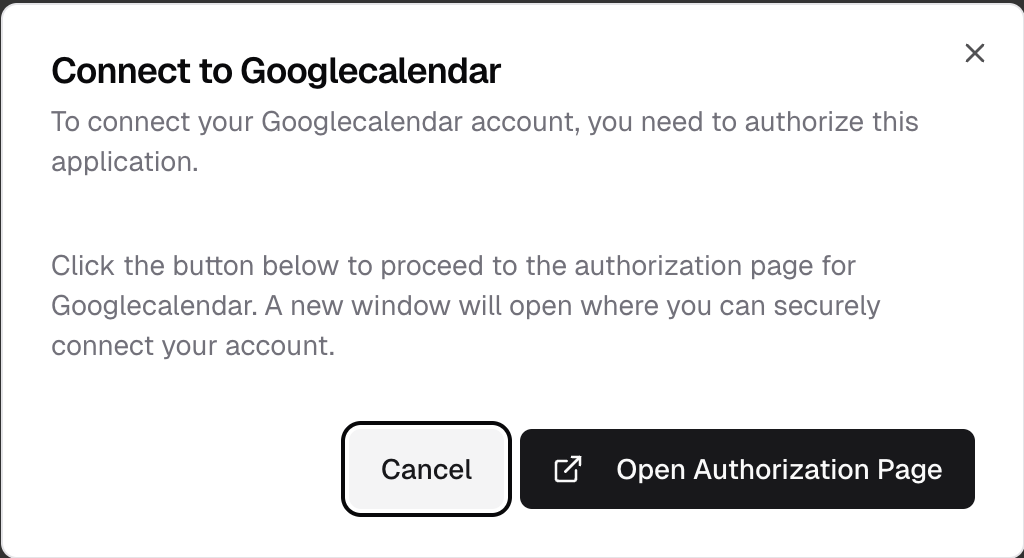
Users need to connect and disconnect their accounts from the chatbot to enable tool usage. When users click "Connect" on a toolkit, we initiate an OAuth flow, and when they click "Disconnect", we remove their connection.
## 1. Initiating a connection
When a user wants to connect their account, we create a connection request that redirects them to the OAuth provider:
## 1. Listing connected accounts
First, we fetch all connected accounts for a user and create a mapping of toolkit
slugs to their connection IDs:
```typescript app/api/composio/toolkits.ts
// @noErrors
export async function GET() {
// ... auth logic ...
// List connected accounts to get connection IDs for each toolkit
const connectedAccounts = await composio.connectedAccounts.list({
userIds: [session.user.id],
});
const connectedToolkitMap = new Map();
connectedAccounts.items.forEach(account => {
connectedToolkitMap.set(account.toolkit.slug.toUpperCase(), account.id);
});
// ... continue with toolkit fetching ...
```
## 2. Fetching toolkit data and building response
Next, we fetch toolkit information for each supported toolkit and combine it with the connection status:
```typescript app/api/composio/toolkits.ts
// @noErrors
export async function GET() {
// ... auth logic ...
// ... connected accounts mapping ...
const SUPPORTED_TOOLKITS = ['GMAIL', 'GOOGLECALENDAR', 'GITHUB', 'NOTION'];
// Fetch toolkit data from slugs
const toolkitPromises = SUPPORTED_TOOLKITS.map(async slug => {
const toolkit = await composio.toolkits.get(slug);
const connectionId = connectedToolkitMap.get(slug.toUpperCase());
return {
name: toolkit.name,
slug: toolkit.slug,
description: toolkit.meta?.description,
logo: toolkit.meta?.logo,
categories: toolkit.meta?.categories,
isConnected: !!connectionId,
connectionId: connectionId || undefined,
};
});
const toolkits = await Promise.all(toolkitPromises);
return NextResponse.json({ toolkits });
```
# Managing connections
Users need to connect and disconnect their accounts from the chatbot to enable tool usage. When users click "Connect" on a toolkit, we initiate an OAuth flow, and when they click "Disconnect", we remove their connection.
## 1. Initiating a connection
When a user wants to connect their account, we create a connection request that redirects them to the OAuth provider:
 ```typescript app/api/connections/initiate/route.ts
// @noErrors
export async function POST(request: Request) {
// ... auth and validation ...
const { authConfigId } = requestBody;
// Initiate connection with Composio
const connectionRequest = await composio.connectedAccounts.initiate(
session.user.id,
authConfigId
);
return NextResponse.json({
redirectUrl: connectionRequest.redirectUrl,
connectionId: connectionRequest.id,
});
```
## 2. Checking connection status
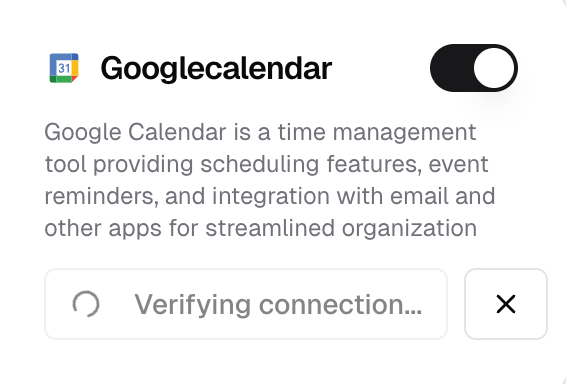
After initiating a connection, we need to wait for the OAuth flow to complete. We check the connection status to know when it's ready to use:
```typescript app/api/connections/initiate/route.ts
// @noErrors
export async function POST(request: Request) {
// ... auth and validation ...
const { authConfigId } = requestBody;
// Initiate connection with Composio
const connectionRequest = await composio.connectedAccounts.initiate(
session.user.id,
authConfigId
);
return NextResponse.json({
redirectUrl: connectionRequest.redirectUrl,
connectionId: connectionRequest.id,
});
```
## 2. Checking connection status
After initiating a connection, we need to wait for the OAuth flow to complete. We check the connection status to know when it's ready to use:
 ```typescript app/api/connections/status/route.ts
// @noErrors
export async function GET(request: Request) {
// ... auth and validation ...
const connectionId = searchParams.get('connectionId');
// Wait for connection to complete
const connection = await composio.connectedAccounts.waitForConnection(connectionId);
return NextResponse.json({
id: connection.id,
status: connection.status,
authConfig: connection.authConfig,
data: connection.data,
});
```
## 3. Deleting a connection
When a user wants to disconnect their account, we remove the connection using the connection ID:
```typescript app/api/connections/delete/route.ts
// @noErrors
export async function DELETE(request: Request) {
// ... auth and validation ...
const connectionId = searchParams.get('connectionId');
// Delete the connection
await composio.connectedAccounts.delete(connectionId);
return NextResponse.json({
success: true,
message: 'Connection deleted successfully',
});
```
# Working with tools
Once users have connected their accounts, we need to track which toolkits are enabled and fetch the corresponding tools for the LLM.
## 1. Tracking enabled toolkits
We keep track of which toolkits the user has enabled in the chat interface:
```typescript components/chat.tsx
// @noErrors
const { ... } = useChat({
// ... other config ...
experimental_prepareRequestBody: (body) => {
// Get current toolbar state
const currentToolbarState = toolbarStateRef.current;
const enabledToolkits = Array.from(
currentToolbarState.enabledToolkitsWithStatus.entries(),
).map(([slug, isConnected]) => ({ slug, isConnected }));
return {
// ... other fields ...
enabledToolkits,
};
},
// ... other handlers ...
});
```
## 2. Fetching tools for enabled toolkits
We fetch Composio tools based on the enabled toolkit slugs:
```typescript lib/ai/tools/composio.ts
// @noErrors
export async function getComposioTools(userId: string, toolkitSlugs: string[]) {
// ... validation ...
const tools = await composio.tools.get(userId, {
toolkits: toolkitSlugs,
});
return tools || {};
```
```typescript app/api/chat.ts
// @noErrors
export async function POST(request: Request) {
// ... auth and parsing ...
const toolkitSlugs = enabledToolkits?.map(t => t.slug) || [];
const composioTools = await getComposioTools(session.user.id, toolkitSlugs);
const result = streamText({
// ... model config ...
tools: {
...composioTools,
},
});
```
# Bonus: Creating custom component to show tool calls
By default, tool calls appear as raw JSON in the chat interface. To create a better user experience, we can build custom components that display tool calls with proper formatting and loading states.
```typescript app/api/connections/status/route.ts
// @noErrors
export async function GET(request: Request) {
// ... auth and validation ...
const connectionId = searchParams.get('connectionId');
// Wait for connection to complete
const connection = await composio.connectedAccounts.waitForConnection(connectionId);
return NextResponse.json({
id: connection.id,
status: connection.status,
authConfig: connection.authConfig,
data: connection.data,
});
```
## 3. Deleting a connection
When a user wants to disconnect their account, we remove the connection using the connection ID:
```typescript app/api/connections/delete/route.ts
// @noErrors
export async function DELETE(request: Request) {
// ... auth and validation ...
const connectionId = searchParams.get('connectionId');
// Delete the connection
await composio.connectedAccounts.delete(connectionId);
return NextResponse.json({
success: true,
message: 'Connection deleted successfully',
});
```
# Working with tools
Once users have connected their accounts, we need to track which toolkits are enabled and fetch the corresponding tools for the LLM.
## 1. Tracking enabled toolkits
We keep track of which toolkits the user has enabled in the chat interface:
```typescript components/chat.tsx
// @noErrors
const { ... } = useChat({
// ... other config ...
experimental_prepareRequestBody: (body) => {
// Get current toolbar state
const currentToolbarState = toolbarStateRef.current;
const enabledToolkits = Array.from(
currentToolbarState.enabledToolkitsWithStatus.entries(),
).map(([slug, isConnected]) => ({ slug, isConnected }));
return {
// ... other fields ...
enabledToolkits,
};
},
// ... other handlers ...
});
```
## 2. Fetching tools for enabled toolkits
We fetch Composio tools based on the enabled toolkit slugs:
```typescript lib/ai/tools/composio.ts
// @noErrors
export async function getComposioTools(userId: string, toolkitSlugs: string[]) {
// ... validation ...
const tools = await composio.tools.get(userId, {
toolkits: toolkitSlugs,
});
return tools || {};
```
```typescript app/api/chat.ts
// @noErrors
export async function POST(request: Request) {
// ... auth and parsing ...
const toolkitSlugs = enabledToolkits?.map(t => t.slug) || [];
const composioTools = await getComposioTools(session.user.id, toolkitSlugs);
const result = streamText({
// ... model config ...
tools: {
...composioTools,
},
});
```
# Bonus: Creating custom component to show tool calls
By default, tool calls appear as raw JSON in the chat interface. To create a better user experience, we can build custom components that display tool calls with proper formatting and loading states.
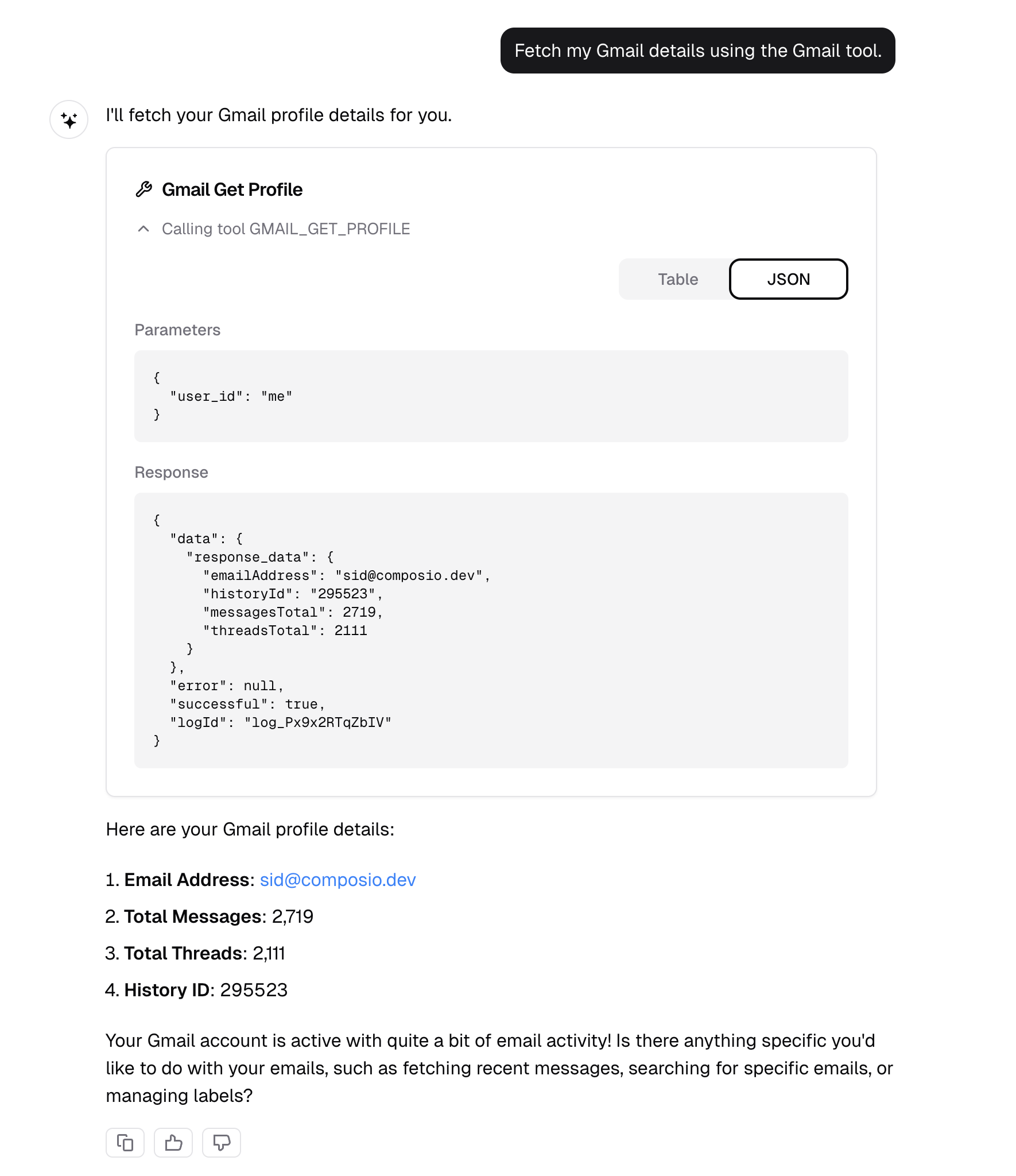 You can find the `ToolCall` component at `components/tool-call.tsx`. Here's how to integrate it into your message rendering:
```typescript components/messages.tsx
// @noErrors
if (type === 'tool-invocation') {
const { toolInvocation } = part;
const { toolName, toolCallId, state, args, result } = toolInvocation;
if (state === 'call') {
return (
);
if (state === 'result') {
return (
);
```
---
📚 **More documentation:** [View all docs](https://docs.composio.dev/llms.txt) | [Cookbooks](https://docs.composio.dev/llms.mdx/cookbooks) | [API Reference](https://docs.composio.dev/llms.mdx/reference)
---
# Composio SDK — Instructions for AI Code Generators
**Purpose:** Enforce only the **current** and **correct** patterns for integrating [Composio](https://composio.dev/) tools into AI agents.
**Scope:** All AI-generated code using Composio must follow these guardrails.
---
## 1. Correct Composio Integration
Composio supports two integration modes: **Native Tools** (with a provider package) and **MCP** (no provider package needed).
### Native Tools
```python
# ✅ CORRECT — Python (defaults to OpenAI)
from composio import Composio
composio = Composio()
session = composio.create(user_id="user_123")
tools = session.tools()
# Pass tools to your agent/LLM framework
```
```typescript
// ✅ CORRECT — TypeScript (defaults to OpenAI)
import { Composio } from "@composio/core";
const composio = new Composio();
const session = await composio.create("user_123");
const tools = await session.tools();
// Pass tools to your agent/LLM framework
```
For other providers, pass the provider explicitly. Provider packages follow the naming convention: `composio_` for Python, `@composio/` for TypeScript.
### MCP
Use `session.mcp.url` and `session.mcp.headers` with any MCP-compatible client (Claude Desktop, Cursor, OpenAI Agents, etc.). No provider package needed.
---
## 2. CRITICAL INSTRUCTIONS FOR AI MODELS
### 2.1 — ALWAYS DO THE FOLLOWING
1. **Use `composio.create(user_id)`** to create a session — this is the entry point for all Composio integrations.
2. **Use `session.tools()`** for native tool integration or **`session.mcp.url`** for MCP integration.
3. **Import** from the correct provider package (`composio_` for Python, `@composio/` for TypeScript).
4. **Pass `user_id` to `composio.create()`**, not to individual tool calls.
### 2.2 — NEVER DO THE FOLLOWING
1. **Do not** instruct users to manually create auth configs or connected accounts before running.
2. **Do not** import from `composio_openai` / `@composio/openai` when using OpenAI Agents SDK — use `composio_openai_agents` / `@composio/openai-agents` instead.
### 2.3 — DISCOURAGED (do not use unless user explicitly asks)
Do **not** generate `composio.tools.get()`, `composio.tools.execute()`, or `composio.provider.handle_tool_calls()` unless the user explicitly requests direct tool execution. These are a supported but **not recommended** low-level interface.
You can find the `ToolCall` component at `components/tool-call.tsx`. Here's how to integrate it into your message rendering:
```typescript components/messages.tsx
// @noErrors
if (type === 'tool-invocation') {
const { toolInvocation } = part;
const { toolName, toolCallId, state, args, result } = toolInvocation;
if (state === 'call') {
return (
);
if (state === 'result') {
return (
);
```
---
📚 **More documentation:** [View all docs](https://docs.composio.dev/llms.txt) | [Cookbooks](https://docs.composio.dev/llms.mdx/cookbooks) | [API Reference](https://docs.composio.dev/llms.mdx/reference)
---
# Composio SDK — Instructions for AI Code Generators
**Purpose:** Enforce only the **current** and **correct** patterns for integrating [Composio](https://composio.dev/) tools into AI agents.
**Scope:** All AI-generated code using Composio must follow these guardrails.
---
## 1. Correct Composio Integration
Composio supports two integration modes: **Native Tools** (with a provider package) and **MCP** (no provider package needed).
### Native Tools
```python
# ✅ CORRECT — Python (defaults to OpenAI)
from composio import Composio
composio = Composio()
session = composio.create(user_id="user_123")
tools = session.tools()
# Pass tools to your agent/LLM framework
```
```typescript
// ✅ CORRECT — TypeScript (defaults to OpenAI)
import { Composio } from "@composio/core";
const composio = new Composio();
const session = await composio.create("user_123");
const tools = await session.tools();
// Pass tools to your agent/LLM framework
```
For other providers, pass the provider explicitly. Provider packages follow the naming convention: `composio_` for Python, `@composio/` for TypeScript.
### MCP
Use `session.mcp.url` and `session.mcp.headers` with any MCP-compatible client (Claude Desktop, Cursor, OpenAI Agents, etc.). No provider package needed.
---
## 2. CRITICAL INSTRUCTIONS FOR AI MODELS
### 2.1 — ALWAYS DO THE FOLLOWING
1. **Use `composio.create(user_id)`** to create a session — this is the entry point for all Composio integrations.
2. **Use `session.tools()`** for native tool integration or **`session.mcp.url`** for MCP integration.
3. **Import** from the correct provider package (`composio_` for Python, `@composio/` for TypeScript).
4. **Pass `user_id` to `composio.create()`**, not to individual tool calls.
### 2.2 — NEVER DO THE FOLLOWING
1. **Do not** instruct users to manually create auth configs or connected accounts before running.
2. **Do not** import from `composio_openai` / `@composio/openai` when using OpenAI Agents SDK — use `composio_openai_agents` / `@composio/openai-agents` instead.
### 2.3 — DISCOURAGED (do not use unless user explicitly asks)
Do **not** generate `composio.tools.get()`, `composio.tools.execute()`, or `composio.provider.handle_tool_calls()` unless the user explicitly requests direct tool execution. These are a supported but **not recommended** low-level interface.